QR Wi-Fi sign maker
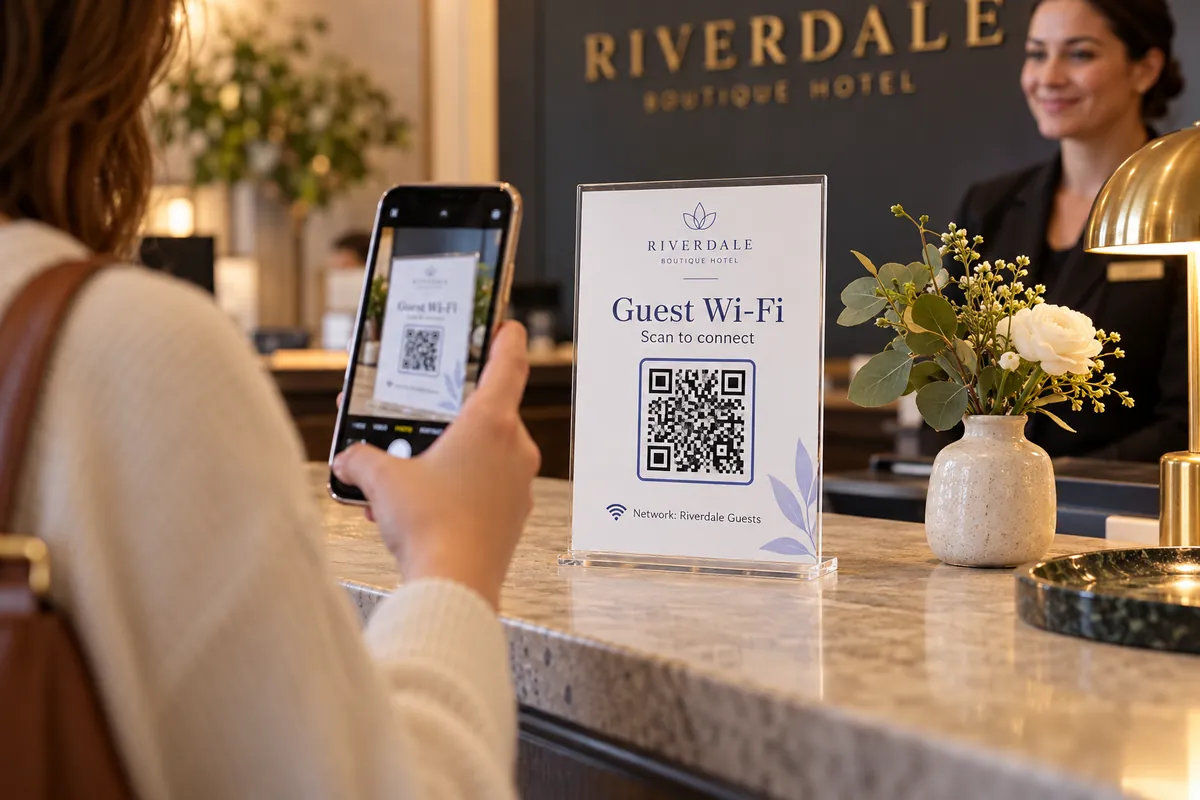
Give guests a sign they can scan to join your Wi-Fi — no typing. Choose a size and colors, then print it on plain paper.
Your Wi-Fi sign
Print at 100% scale (turn off “fit to page”), cut along the dashed lines and scan one sign with an iPhone and an Android phone before you put it out.
Three steps to a Wi-Fi sign
Enter your network
Type the network name and password and pick the security type your router uses.
Pick a size and colors
A6 for a counter, a wide card for a desk, or A5 for a wall.
Print and put it out
Scan it once with an iPhone and an Android phone, then place it where guests sit.
A good guest Wi-Fi sign
- Use a separate guest network, so changing its password never affects your own devices.
- Print the password on the sign too — some older phones cannot join from a code.
- If the router says “WPA2/WPA3 mixed”, choose WPA / WPA2 / WPA3 here.
- Keep a spare copy: when you change the password, print a new sign the same day.
Where a Wi-Fi sign saves time
Cafés
A small card on every table instead of telling the password again and again.
Holiday rentals
A framed sign in the entrance or on the fridge.
Offices
A sign in the meeting room for visitors.
Events and venues
A banner by the entrance so guests connect themselves.
More for your guests
More design & print tools
- Table tent generator — Fold-in-half table signs
- Sticker sheet maker — Many QR stickers on one sheet
- Health report — Score a code before printing
Make just the code
Ideas by industry
Questions, answered
How do I make a Wi-Fi sign with a QR code?
Enter your network name and password, choose the security type, pick a size and colors, then print. Guests scan the code with their camera and join without typing the password.
Which security type should I choose?
Most modern routers use WPA2 or WPA3 — pick “WPA / WPA2 / WPA3”. Choose WEP only for very old equipment, and “No password” for an open network.
Should the password be printed on the sign?
It helps guests whose phone can't scan, and for a venue's guest network it is usually fine. Untick the option if you want only the code to show.
Is my password uploaded?
No. The code and the sign are built in your browser. Nothing is sent to a server, so the password never leaves your device.
What if I change the Wi-Fi password later?
The old code stops working. Make a new sign with the new password. Using a separate guest network makes this less disruptive.
Does it work on iPhone and Android?
Yes. Both read Wi-Fi QR codes with the built-in camera app. Older Android versions may need Google Lens or a scanner app.